
Setting Up a Smart Home for the First Time
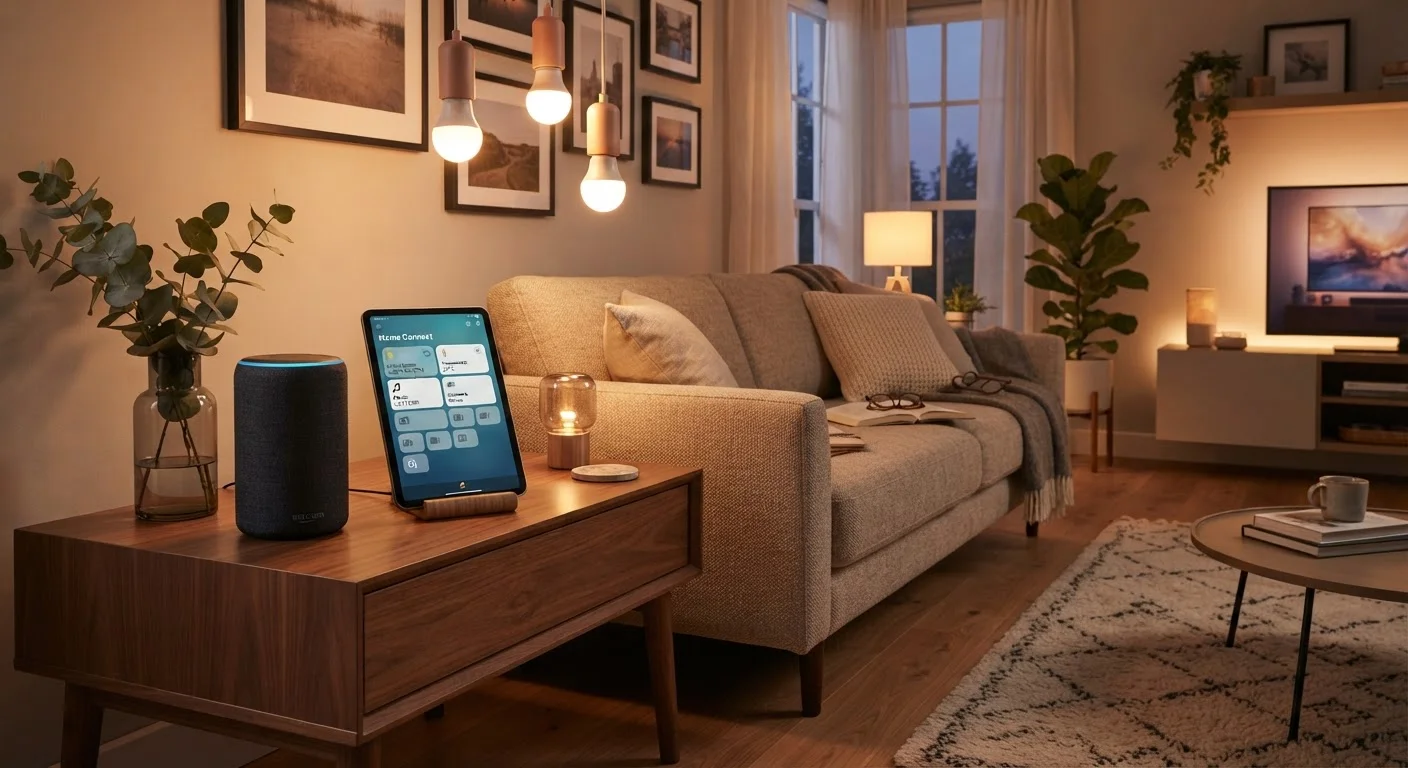
Photo credit: Infolagoon.com | Blogs To Rely On
In this article
New to connected home devices? This beginner's guide walks through planning, compatibility, and setup basics without assuming any prior tech knowledge.
Key Takeaways
- Choosing a single ecosystem before purchasing any device prevents most compatibility headaches.
- Your Wi-Fi router's quality directly affects how reliably smart devices perform.
- Smart plugs and bulbs are the lowest-risk entry points for first-time users.
- A Matter-compatible device can work across multiple ecosystems, giving you more flexibility.
- Setting up devices one at a time reduces confusion and makes troubleshooting easier.
- Network security should be addressed early — connected devices expand your home's exposure.
What a Smart Home Actually Means
A smart home is simply a residence where everyday devices — lights, thermostats, door locks, outlets — can be controlled remotely or automatically through an app, a voice assistant, or scheduled routines. There's no single finish line; a single smart bulb counts just as much as a fully automated system.
The appeal is practical: adjust the thermostat from bed, check whether you left a light on while you're away, or have the coffee maker start before you wake up. None of these require technical expertise to use once they're configured. For a broader grounding in how these systems work under the hood, this end-to-end overview of smart home technology covers the full landscape.
Ecosystem
A family of smart home devices, apps, and voice assistants from one platform (like Amazon, Google, or Apple) that are designed to work together seamlessly.
Hub
A central device that connects and coordinates smart home gadgets, especially those that don't connect directly to Wi-Fi. Not all setups require one.
2.4 GHz Wi-Fi
A wireless frequency band that most smart home devices use because it travels farther through walls, even though it's slower than the 5 GHz band.
Matter
An industry standard that allows smart devices from different brands and ecosystems to communicate with each other, reducing compatibility barriers.
Automation
A preset rule that triggers a device action automatically — for example, turning off lights at a scheduled time — without you needing to do anything manually.
Pairing
The process of connecting a smart device to your app and home network for the first time, usually done through the manufacturer's smartphone app.
Choosing an Ecosystem Before You Buy Anything
An ecosystem is the family of apps, voice assistants, and compatible devices a platform ties together. The major ones include Amazon Alexa, Google Home, and Apple HomeKit. Picking one ecosystem as your primary platform before purchasing any device prevents the most common first-timer frustration: buying a device that doesn't work with the app you already have on your phone.
Consider which voice assistant you already use, which operating system your phone runs, and whether other household members have different preferences. You don't have to be locked in forever — the Matter standard is gradually improving cross-ecosystem compatibility — but starting within one ecosystem keeps things simpler. Before any purchase, run through this compatibility checklist to avoid surprises.
Stick to One App at the Start
When you first set up smart home devices, try to manage everything through a single ecosystem app rather than juggling multiple manufacturer apps. Consolidating control in one place — whether that's Amazon Alexa, Google Home, or Apple Home — makes building routines and troubleshooting far simpler. You can always integrate additional apps later once you're comfortable with the basics.
Your Home Network: The Foundation Everything Runs On
Every smart device in your home communicates through your Wi-Fi network. A slow or unreliable router doesn't just affect streaming — it causes smart devices to drop offline, respond sluggishly, or fail to trigger automations. Before adding devices, confirm your router covers the areas where you plan to install them. Dead zones in garages, basements, or back bedrooms are common problem areas.
Most entry-level smart home devices connect over the 2.4 GHz Wi-Fi band rather than 5 GHz, because 2.4 GHz travels farther through walls. If your router broadcasts both bands under the same name, some devices may struggle to connect to the right one — consult your router's manual or app to manage this. For a deeper look at connectivity trade-offs, understanding wired vs. wireless device options helps you plan ahead.
Renters: Check Before Installing
Some smart home devices — particularly smart locks, video doorbells, and hardwired switches — may require modifications to your home that need landlord approval. Smart plugs and bulbs generally don't require any changes to the property and are a safer starting point if you're renting. Always review your lease terms before installing anything that attaches to wiring, doors, or walls.
Starting Small: The Devices That Make Sense First
The lowest-friction entry points for most households are smart plugs and smart bulbs. Both are inexpensive, require no wiring, and are forgiving if you decide to switch platforms later. A smart plug turns any standard lamp or appliance into a remotely controlled device. Smart bulbs replace existing bulbs and add dimming or color-temperature control through an app.
A smart speaker or display that doubles as a voice assistant hub is also worth considering early — it becomes the central control point for everything else you add. Avoid starting with complex devices like smart locks, video doorbells, or whole-home systems until you've gotten comfortable with simpler ones. There are also practical smart home uses that most households overlook worth knowing before you expand.
Setting Up Your First Device Step by Step
Most smart devices follow the same general setup pattern: download the manufacturer's app, create an account, plug in or install the device, and follow the in-app pairing instructions. Here's what to expect at each stage:
- Download the app first. Have it installed and logged in before you open the device box.
- Position near your router initially. Complete the setup process while the device is close to your router, then move it to its permanent location.
- Follow the in-app prompts exactly. Most apps walk through pairing step by step — don't skip ahead.
- Name devices clearly. Use names like "kitchen lamp" or "front porch light" rather than default names, which makes voice commands and automations much easier later.
- Test before declaring success. Toggle the device from the app, then try a voice command if applicable.
If a device fails to connect, the most common fixes are: moving closer to the router, confirming you're on 2.4 GHz Wi-Fi, and restarting both the device and the app.
Don't Skip Firmware Updates
When a new smart device connects to the internet for the first time, it will often prompt you to install a firmware update. Don't dismiss or postpone this. Firmware updates frequently patch security vulnerabilities and fix connectivity bugs that could cause problems within days of setup. Allow the update to complete fully before testing the device.
What to Tackle After Your First Week
Once your first device is working reliably, two priorities stand out. First, explore automations — scheduled or trigger-based routines like turning off all lights at bedtime or adjusting the thermostat when you leave home. These are where smart homes go from novelty to genuinely useful. Most ecosystem apps have a dedicated section for creating routines without any coding.
Second, address network security. Connected devices extend your home network's exposure, and a few simple steps make a meaningful difference. These practical steps for securing your smart home network are a natural next read. You might also build smart home expansion into your monthly budget so you're not making impulsive purchases that create compatibility problems down the line.
This article is for general informational purposes only. Product availability, compatibility, and features vary by manufacturer and region. Always consult product documentation and verify compatibility before purchasing.
Frequently Asked Questions

Author
Tech & Gadgets Editorial Team
Tech & Gadgets Editorial Team is the collective byline for our editorial team and contributor network. Articles published under this byline or an editorial pen name are researched, written, and reviewed according to our editorial standards for clarity, consistency, and independence before publication.
View all articles →