
Securing Your Smart Home Network
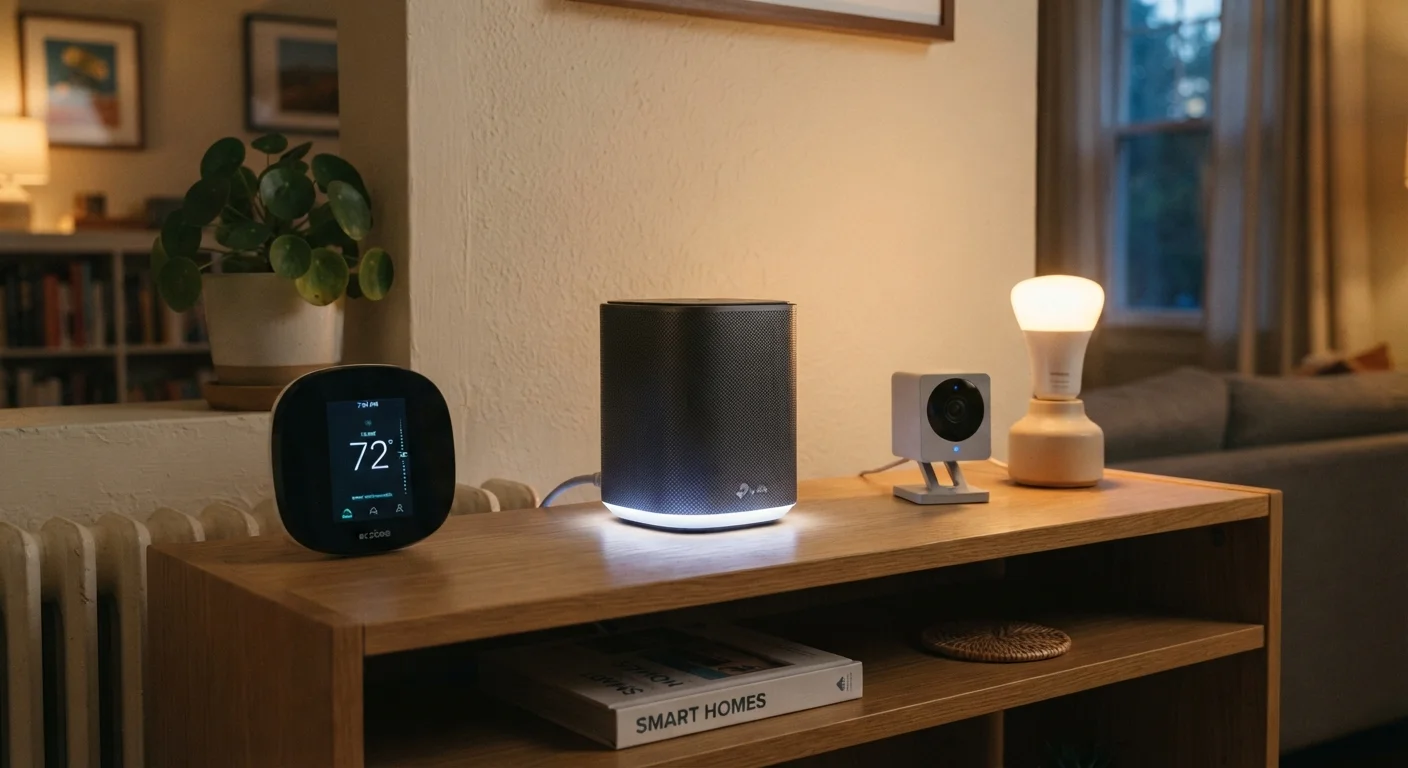
Photo credit: Infolagoon.com | Blogs To Rely On
In this article
Connected devices expand your home network's attack surface. These practical steps help you reduce risk without needing a cybersecurity background.
Key Takeaways
- Isolating smart devices on a separate guest or IoT network limits damage if one device is compromised.
- Strong, unique passwords and regular firmware updates close the most common entry points attackers use.
- Disabling features you don't actively use — like remote access or UPnP — shrinks your network's attack surface.
- Reviewing which apps and devices still have access to your network periodically reduces forgotten vulnerabilities.
Why Smart Homes Create New Security Challenges
Adding smart devices to your home — thermostats, door locks, cameras, speakers, light bulbs — is genuinely convenient. But each device is, in technical terms, a small internet-connected computer. And unlike your laptop, most of these devices run quietly in the background with little feedback about what they're doing or whether they're secure.
The result is that a typical connected home can have dozens of devices sharing a single network, each representing a potential entry point. Attackers don't always target you specifically; many exploit devices with weak default passwords or outdated software automatically, at scale. If you're setting up smart home devices for the first time, building security habits from the start is far easier than retrofitting them later.
The good news: you don't need a technical background to meaningfully reduce your risk. A handful of consistent habits does most of the work.
Create a separate network segment exclusively for smart home devices.
Most home routers support a 'guest network' that keeps connected devices isolated from your main computers and phones. If a smart bulb or camera is compromised, it cannot easily reach the devices where you store personal or financial data. This single step limits how far an attacker can move through your network.
Change default passwords on every device and router immediately after setup.
Many devices ship with manufacturer default credentials that are publicly documented online. Attackers use automated tools to scan for devices still using these defaults. Changing passwords to long, unique phrases closes this entry point quickly.
Keep device firmware and router software updated.
Firmware updates frequently include security patches that address newly discovered vulnerabilities. Manufacturers release these quietly — if you don't check manually or enable automatic updates, your device may remain exposed long after a fix is available.
Disable features and services you don't actively use.
Smart devices often ship with features enabled by default — remote access, Universal Plug and Play (UPnP), or cloud syncing — that create additional network exposure. Each active feature is another surface an attacker could probe. Turning off what you don't need reduces that surface without affecting daily use.
Use a password manager and enable two-factor authentication on smart home accounts.
Many smart home devices are controlled through cloud accounts. If those accounts use weak or reused passwords, an attacker who compromises one account may gain access to your locks, cameras, or alarm system. Two-factor authentication (2FA) adds a second verification step even if a password is stolen.
Practical Steps That Make a Real Difference
Security improvements don't have to be complicated. The practices below address the most common vulnerabilities in home networks and are designed to be completed in an afternoon. Even applying two or three of them significantly reduces your exposure.
For a broader look at what data your devices may be collecting alongside these security steps, see our guide on the privacy trade-offs of smart home devices.
Keeping Your Network Secure Over Time
Security isn't a one-time setup — it requires occasional maintenance. A device that was secure when you bought it may become vulnerable as new weaknesses are discovered and left unpatched.
When a Manufacturer Stops Updating a Device
Some smart device makers eventually stop releasing firmware updates for older models — a state called 'end of support.' A device in this state will not receive security patches for new vulnerabilities, making it progressively riskier to keep connected. If a device you rely on has reached end of support, isolating it on a separate network and limiting its permissions are reasonable interim steps, but replacement is generally the more secure long-term choice.
Set a recurring reminder every three to six months to check for firmware updates on routers and devices, review which apps still have network access, and remove any devices you no longer use. This is particularly worth doing after a manufacturer announces a security patch or discontinues support for a product line.
If you're troubleshooting devices that behave erratically — which can sometimes signal unauthorized activity — our article on why smart devices keep disconnecting covers the most common culprits. And if you're thinking about this topic more broadly, our complete smart home technology guide covers security alongside every other major consideration.
This article is for general informational purposes only. Network security recommendations reflect widely accepted consumer guidance but may not address every environment or threat scenario. Consider consulting a qualified IT professional for situations involving sensitive data or business use.

Author
Tech & Gadgets Editorial Team
Tech & Gadgets Editorial Team is the collective byline for our editorial team and contributor network. Articles published under this byline or an editorial pen name are researched, written, and reviewed according to our editorial standards for clarity, consistency, and independence before publication.
View all articles →