
Everything Your Phone's Accessibility Features Can Actually Do
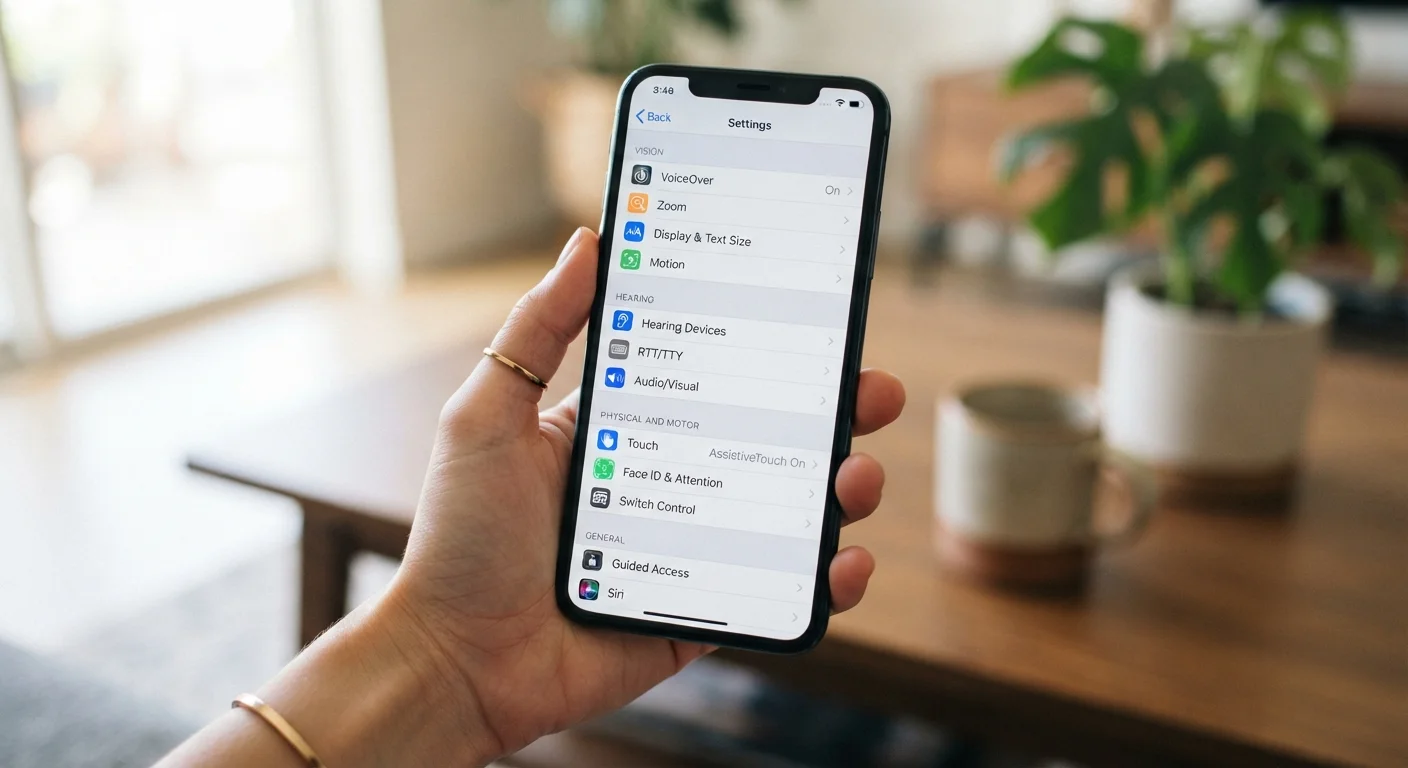
Photo credit: Infolagoon.com | Blogs To Rely On
In this article
Accessibility settings aren't just for people with disabilities. Many features make everyday phone use easier for anyone. Here's what's available.
Key Takeaways
- Accessibility features are built into every modern smartphone, regardless of brand or price.
- Many features — like text size controls and captions — benefit everyday users, not just those with disabilities.
- Voice control, switch access, and hearing tools can all reduce reliance on precise taps and swipes.
- Most settings are reversible — you can explore them without worrying about breaking anything.
- Both Android and iOS organize accessibility under a dedicated menu in the main Settings app.
Why Accessibility Features Aren't Just for People with Disabilities
Every smartphone ships with a dedicated set of tools called accessibility features — settings designed to make the device usable for people with a wide range of vision, hearing, and motor differences. But these tools have a broader audience than most people realize.
Squinting at small text in bright sunlight, struggling to hear a video in a noisy room, or trying to tap a tiny button with wet hands — these are everyday problems that accessibility features were built to solve. Researchers and designers sometimes call this situational disability: temporary conditions that affect how anyone interacts with technology.
Think of accessibility settings the way you'd think of adjustable seats in a car. They exist to serve drivers with specific physical needs, but nearly everyone adjusts them. The same logic applies here. Exploring these settings costs nothing, and almost every change is reversible in seconds.
Try Before You Need It
Don't wait until a specific need arises to explore accessibility settings. Spending 10 minutes browsing them when you're not under any pressure gives you a mental map of what's available — so when your circumstances change (age, illness, environment), you know where to look.
Vision and Display Tools
Vision-related settings are among the most widely useful for everyday users. Here's what's available:
- Text size and bold text: Increase font size across all apps at once, without changing individual app settings.
- Display zoom: Scales the entire screen interface larger, making icons and buttons easier to tap.
- Color filters and inversion: Originally designed for color blindness, but also reduces eye strain in low-light environments.
- Dark mode integration: On many phones, accessibility settings let you schedule or deepen dark mode beyond the standard toggle.
- Magnifier: Turns your phone's camera into a magnifying glass — useful for reading small print on packaging or documents.
- Screen reader (VoiceOver on iOS, TalkBack on Android): Reads aloud everything on screen. Primarily for users with significant vision loss, but can help in any hands-free situation.
If you find yourself holding your phone at arm's length or pinching to zoom constantly, display settings are worth a few minutes of exploration. See our comparison of how Android and iOS handle daily tasks for more on how these two systems differ in their approaches.
1 in 4
U.S. adults living with a disability
According to the CDC, approximately 1 in 4 American adults has some type of disability, many of which affect how people use digital devices.
71%
Smartphone users who never adjust default settings
Industry surveys consistently suggest the majority of smartphone owners use their device on factory defaults, leaving accessibility tools entirely unexplored.
Hearing and Sound Features
These settings help when audio is hard to hear — or when silence is required:
- Live captions: Automatically generates real-time subtitles for any audio playing on your phone, including videos, calls, and podcasts. No internet connection required on supported devices.
- Sound notifications: Some phones can detect environmental sounds — a doorbell, a smoke alarm, a baby crying — and alert you visually or through vibration.
- Mono audio: Combines stereo left and right channels into one. Useful if you typically use only one earbud or have hearing differences in one ear.
- Visual flash alerts: Makes the camera flash or screen blink when you receive a notification — handy in loud environments where you might miss vibration.
- Hearing aid compatibility: Both iOS and Android support direct audio streaming to compatible hearing aids via Bluetooth.
Live captions in particular have become popular among users with no hearing impairment — for watching videos in quiet places, following fast speakers, or keeping up in noisy environments.
Enable live captions and leave them on for a week — even if you think you don't need them. Most users who try this find at least three situations per day where captions add real value.
Situational use cases for captions — noisy cafes, silent environments, fast speakers — are far more common than people anticipate until they experience the feature actively.
If a family member or older relative struggles with their phone's small interface, text size and display zoom are the first two settings to check — before assuming the phone itself is the problem.
Default display settings are calibrated for average conditions and younger eyes. A simple size adjustment often resolves frustration that's been attributed to the phone being 'too complicated.'
Motor and Touch Controls
These features reduce dependence on precise physical interaction with the screen:
- Touch sensitivity adjustment: Helps when using the phone with gloves or dry hands.
- Touch duration settings: Controls how long a tap needs to be held before the phone registers it as a long press — useful for users who tap slowly or accidentally.
- Reachability (iPhone): Brings the top of the screen down within thumb's reach on larger phones.
- AssistiveTouch (iOS) / Interaction controls (Android): Creates an on-screen shortcut button that replaces physical button presses — helpful if buttons are hard to press.
- Switch access: Allows control of the phone using external hardware switches, head movements, or even facial expressions — primarily for users with significant motor differences, but a powerful demonstration of what's possible.
- Gyroscope-based navigation: Some phones let you tilt or move the device to scroll or navigate.
Switch Access Requires Initial Setup
Features like Switch Access or full Voice Control require some configuration before they work reliably. If you enable one and your phone becomes difficult to navigate, don't panic — you can always restart the device and access Settings from the lock screen or ask someone to help you navigate back. These features are not permanent changes.
Voice and Speech Assistance
Beyond standard voice assistants like Siri or Google Assistant, accessibility menus include more powerful speech-based tools:
- Voice Control (iOS) / Voice Access (Android): Lets you navigate, tap, scroll, and type entirely by voice — including naming any element on screen by number or label.
- Dictation: Converts spoken words to typed text in any text field. More reliable than typing for many users.
- Type to Siri / Assistant text input: Lets you type your queries instead of speaking them — useful in meetings or quiet spaces.
Voice-based tools pair naturally with smart home technology, since many of the same voice commands that work on your phone extend to connected home devices.
Where to Find These Settings on Your Phone
On both major platforms, accessibility settings live in the same general place:
- iPhone (iOS):
- Go to Settings → Accessibility. Features are grouped under Vision, Physical and Motor, Hearing, and General categories.
- Android:
- Go to Settings → Accessibility. The exact layout varies by manufacturer, but the section is always labeled Accessibility.
If you're unsure where to start, try adjusting text size and enabling live captions first — both are low-stakes and immediately useful. From there, browse by category based on the situations where your phone feels frustrating to use.
While you're in Settings, it's also worth reviewing your privacy settings — another area most people never open but that has real everyday impact. And if your phone feels sluggish overall, our guide on keeping a smartphone running well covers simple habits that make a measurable difference.
Settings Vary by Device and Software Version
The exact names and locations of accessibility features differ across Android manufacturers (Samsung, Google, OnePlus, etc.) and iOS versions. If a setting described here doesn't appear exactly as named, use the search bar within your Settings app to find it by keyword. Most features have been available for several years across mainstream devices.

Author
Tech & Gadgets Editorial Team
Tech & Gadgets Editorial Team is the collective byline for our editorial team and contributor network. Articles published under this byline or an editorial pen name are researched, written, and reviewed according to our editorial standards for clarity, consistency, and independence before publication.
View all articles →