
Your Smartphone's Privacy Settings, Explained Without the Tech Talk
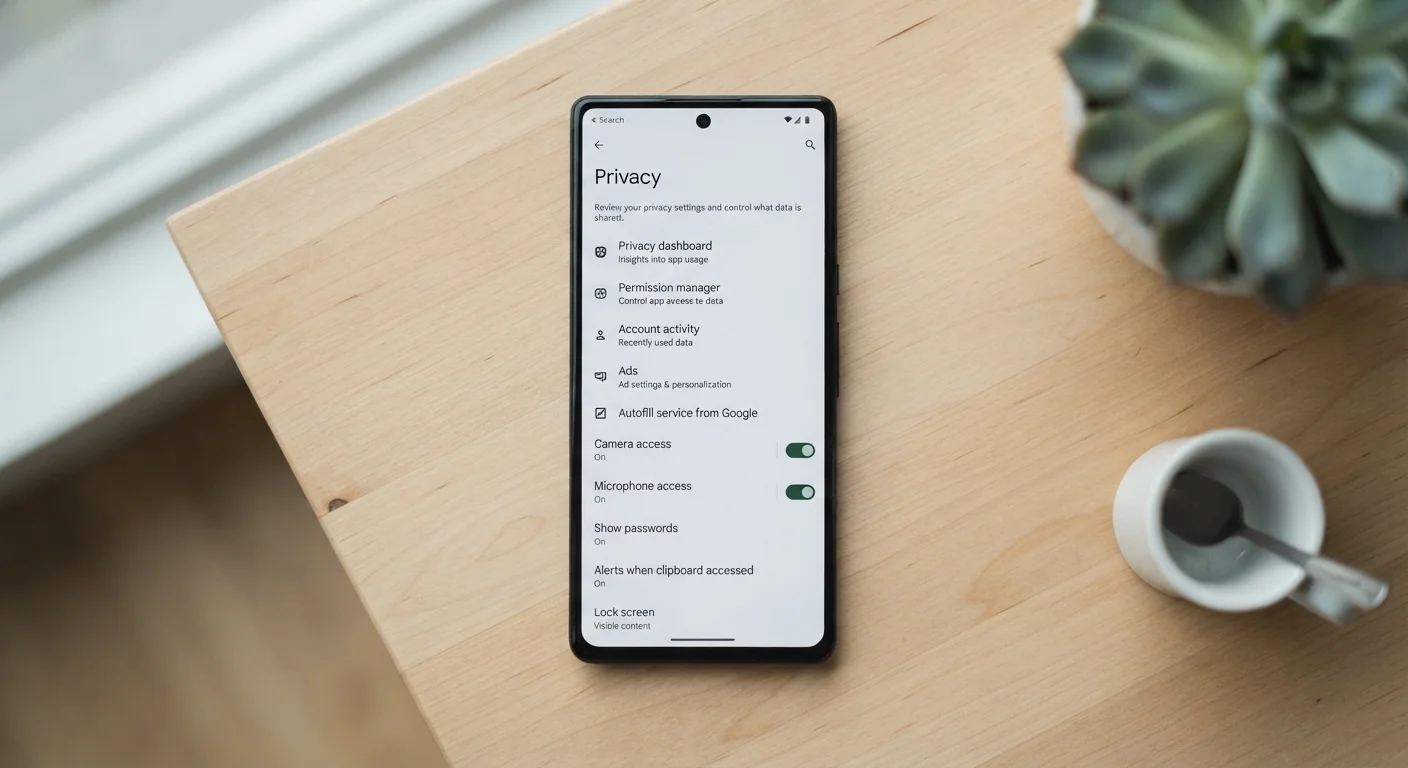
Photo credit: Infolagoon.com | Blogs To Rely On
In this article
Most people never open their phone's privacy settings. Here's what they control, why they matter, and the ones worth changing first.
Key Takeaways
- Privacy settings let you control which apps can access your camera, microphone, contacts, and location.
- Many apps request more permissions than they actually need to function.
- Location access has multiple levels — 'always on' shares far more data than most people expect.
- Both Android and iOS now offer built-in privacy dashboards that summarize what apps are doing.
- A few targeted changes to permissions and ad tracking can meaningfully reduce unnecessary data sharing.
What Privacy Settings Actually Control
Your phone is a remarkably capable device — and that capability comes partly from its ability to sense the world around you. It has a microphone, cameras, a GPS chip, access to your contacts, and a record of your browsing. Privacy settings are the switches that determine which apps get to use which of those things.
Think of it like the permissions slip you sign before a school trip. The app is asking: can I access your camera? Your location? Your contacts? Privacy settings let you say yes, no, or only sometimes — often on an app-by-app basis.
Both major phone platforms — Apple's iOS and Google's Android — have added more detailed privacy controls in recent years. Neither protects you automatically from every form of data collection, but both give you meaningful tools if you know where to look. The challenge is that these settings are spread across multiple menus, and the defaults aren't always the most private options.
App Permission
A request an app makes to access a specific feature of your phone, like your camera or microphone. You can approve or deny each one.
Location Services
The phone feature that allows apps to know where you are, using GPS, Wi-Fi signals, or cell towers. Each app can be set to access this always, only while in use, or never.
Ad Tracking
A method advertisers use to follow your activity across different apps and websites to build a profile of your interests for targeted advertising.
Privacy Dashboard
A summary screen built into modern phones that shows which apps have recently accessed your camera, microphone, or location — all in one place.
Approximate Location
A setting that shares only your general area — like your city or neighborhood — rather than your precise GPS coordinates with an app.
Background App Activity
When an app continues running and collecting data even when you're not actively using it, such as a location tracker updating while your screen is off.
App Permissions: The Big One
Permissions are the most direct form of privacy control on your phone. Every app that wants to access your camera, microphone, contacts, calendar, or storage has to ask — and you have the ability to approve or deny each request.
The problem is that many people tap Allow reflexively, especially when an app prompts them mid-task. A flashlight app asking for microphone access, or a simple game requesting your contacts, are examples of requests that don't match the app's stated purpose.
To review what you've already allowed: on iPhone, go to Settings > Privacy & Security and browse by category (Camera, Microphone, Contacts, and so on). On Android, go to Settings > Privacy > Permission Manager to see the same organized view.
When you see an app listed under a permission it doesn't logically need, revoking it is straightforward — and the app usually continues working fine. The differences between Android and iOS go beyond just looks; how each handles permission defaults is one of the more meaningful distinctions.
Use the 'Last 7 Days' View
Both iOS and Android show you a log of which apps accessed your camera, microphone, and location recently. On iPhone this appears in Settings > Privacy & Security at the top of most permission categories. Scanning this list once is often enough to surface a surprise or two — apps you forgot you installed or ones accessing sensors more often than expected.
Location Data: More Granular Than You Think
Location is worth its own section because the options are more nuanced than a simple on/off switch. Most phones now offer three or four levels of location access for each app:
- Never — the app cannot see your location at all.
- While using the app — location is only shared when you have the app open on screen.
- Always — the app can access your location even when running in the background, including when you're not using it.
The Always setting is the one most worth scrutinizing. A navigation app running in the background makes sense. A recipe app or a shopping app with that permission does not. Switching apps from Always to While using is a low-effort change with real impact on how much location data gets collected over time.
iOS also gives you the option to share only an approximate location rather than your precise GPS coordinates — useful for apps that need to know your general region but don't need to know your exact street. This is a relatively recent addition worth enabling for most non-navigation apps.
Ad Tracking and Data Sharing
Beyond permissions, your phone has settings that affect how advertisers build a profile of your interests based on your activity across apps and websites. This is often called ad tracking or cross-app tracking.
On iPhone, a feature called App Tracking Transparency requires every app to ask your permission before tracking your activity across other companies' apps and websites. If you haven't reviewed these requests, check Settings > Privacy & Security > Tracking to see which apps you've allowed and adjust accordingly.
On Android, you can find similar controls under Settings > Privacy > Ads. Google has been updating how this works across Android versions, but the option to opt out of personalized ads or reset your advertising ID is generally available there.
Limiting ad tracking doesn't make ads disappear — it just means ads are less precisely targeted to your behavior. Some people find that an acceptable trade; others prefer tailored ads. Either way, the choice should be yours to make consciously. Your phone's connection settings also play a role in data exposure — see our guide to mobile data, Wi-Fi, and Bluetooth for context on how each connection type works.
Default Settings Favor Convenience, Not Privacy
Phones are typically set up to make apps work smoothly out of the box, which often means permissions and tracking are enabled by default. This isn't malicious, but it does mean the factory settings may share more than you'd choose if asked directly. Reviewing settings once after you get a new phone — or after installing a batch of new apps — puts you back in control.
Settings Worth Changing First
If you want a practical starting point rather than a full audit, these are the changes that tend to have the most impact for the least effort:
- Review microphone and camera permissions. Check which apps have access and remove it from any that don't need it to function.
- Switch location from Always to While Using for any app where background access doesn't make obvious sense.
- Turn on Approximate Location for apps that only need to know your general area.
- Limit ad tracking. On iPhone, disable Allow Apps to Request to Track, or decline future requests. On Android, opt out of ads personalization in the Ads menu.
- Check your privacy dashboard. Both iOS and Android now include a summary view showing which apps recently used your camera, microphone, or location — it's a quick way to spot anything unexpected.
Keeping your phone's software up to date works alongside these settings — security patches often address vulnerabilities that privacy settings alone can't fix. Our article on what happens during a software update explains why those prompts matter more than most people realize. For broader privacy considerations when technology is woven into your home, the privacy trade-offs of smart home devices is a useful companion read.
Privacy Settings Have Limits
Adjusting these settings reduces how much data apps can collect from your device, but it doesn't make your phone invisible to the internet. Your mobile carrier, the websites you visit, and the accounts you log into all have their own data practices. Think of privacy settings as one useful layer of control among several, not a complete solution on their own.
Frequently Asked Questions

Author
Tech & Gadgets Editorial Team
Tech & Gadgets Editorial Team is the collective byline for our editorial team and contributor network. Articles published under this byline or an editorial pen name are researched, written, and reviewed according to our editorial standards for clarity, consistency, and independence before publication.
View all articles →