
SSD vs. HDD: The Storage Difference That Changes How a Computer Feels
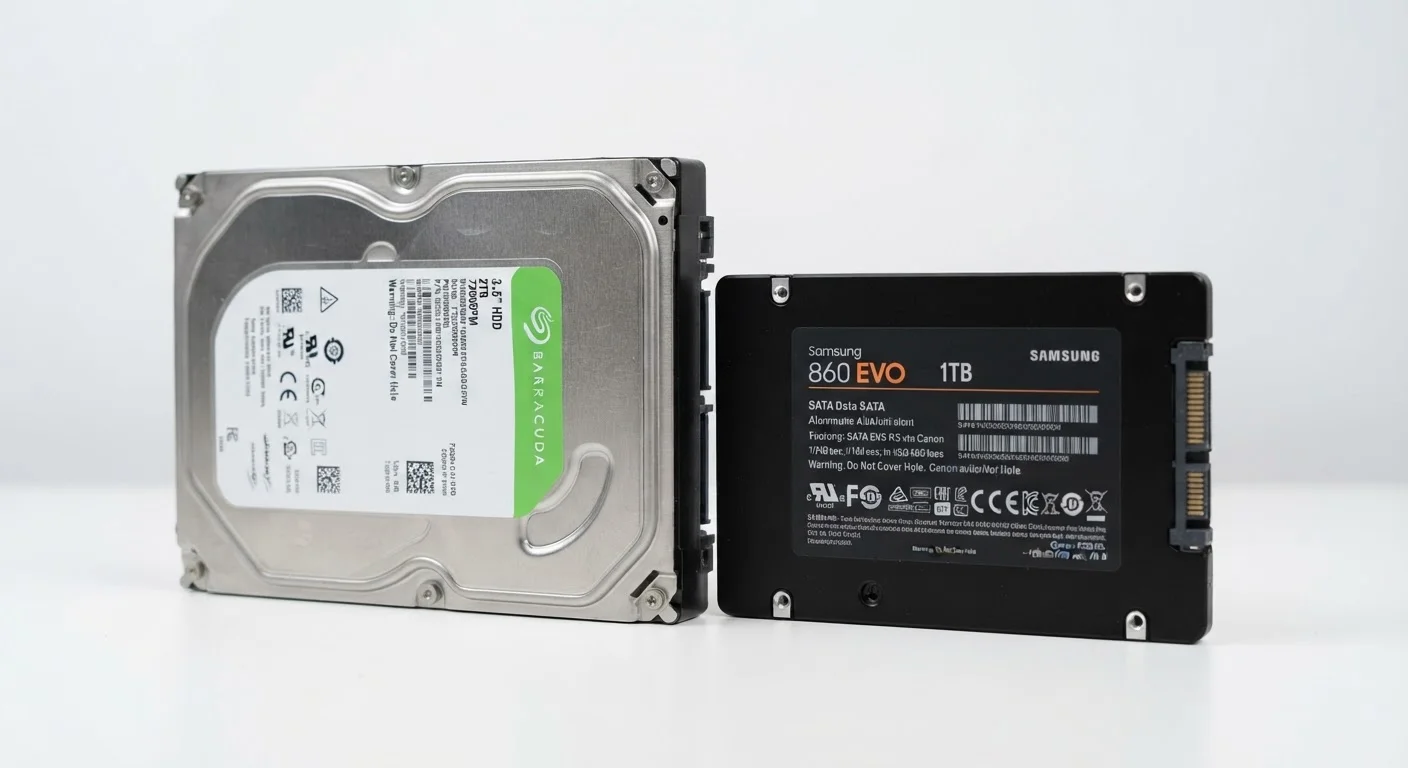
Photo credit: Infolagoon.com | Blogs To Rely On
In this article
Solid-state and hard-disk drives aren't just two ways to store files — they shape the entire feel of daily computer use. Here's why.
Key Takeaways
- SSDs have no moving parts, making them significantly faster and more durable than HDDs.
- HDDs typically offer more storage capacity per dollar, which matters when storing large media libraries.
- The drive type is one of the biggest factors shaping how fast and responsive a computer feels.
- Most modern laptops ship with SSDs; HDDs remain common in desktop towers and external drives.
- For everyday computing tasks, an SSD delivers a noticeably better experience than an HDD.
What's Actually Inside Each Drive
An HDD (Hard Disk Drive) stores data on spinning magnetic platters. A tiny read/write head moves across those platters to find and retrieve your files — physically, like a record needle on vinyl. The faster the platters spin (measured in RPM), the quicker data can be accessed, but there's an inherent mechanical ceiling to that speed.
An SSD (Solid-State Drive) has no moving parts at all. It stores data on flash memory chips — the same core technology used in USB thumb drives, just faster and more capable. When your computer requests a file, the SSD retrieves it electronically, with no waiting for a platter to spin into position.
That physical difference — spinning parts versus no moving parts — explains almost every practical difference between the two. To understand how these drives relate to other components shaping your computer's performance, see what RAM, storage, and CPU speed actually do.
| Criterion | HDD | SSD |
|---|---|---|
| Technology | Spinning magnetic platters | Flash memory chips, no moving parts |
| Typical boot time | 45–90+ seconds | Under 15 seconds |
| Data transfer speed | 80–160 MB/s (SATA HDD) | 500 MB/s–7,000 MB/s (SATA to NVMe) |
| Durability | Vulnerable to shock and vibration | Highly resistant to physical shock |
| Noise | Audible hum and click | Completely silent |
| Cost per terabyte | Lower — more storage per dollar | Higher — premium for speed |
| Common use case | Bulk storage, desktop secondary drives | Primary system drive, laptops |
How the Difference Shows Up in Daily Use
The most obvious place you'll feel the gap is at startup. A computer with an SSD typically boots its operating system in under 15 seconds. A comparable machine with an HDD can take 45 seconds to over a minute — sometimes longer if it's older or the drive is nearly full. That difference compounds: every app you open, every large file you save, every browser tab you load involves the drive.
HDDs also produce audible noise (a faint hum or click) and generate more heat from their spinning components. SSDs run silently and cooler, which matters both for comfort and long-term reliability. Because SSDs contain no mechanical parts that can wear from vibration or shock, they're substantially more resilient if a laptop is bumped or dropped.
3–5×
Speed advantage of SSDs over HDDs for typical workloads
Sequential read speeds for SATA SSDs commonly range from 500–550 MB/s versus 100–160 MB/s for typical 7200 RPM HDDs.
~10×
Cost difference per terabyte (HDD vs. NVMe SSD)
As of recent market pricing, consumer HDDs have typically cost around $20–$25 per terabyte, while NVMe SSDs have run $80–$120 per terabyte.
One area where HDDs retain a real advantage is raw capacity per dollar. If you maintain large video archives, music libraries, or professional photo collections, an HDD can store several terabytes for far less money than an equivalent SSD. Many desktop setups combine both: an SSD for the operating system and active programs, and a spacious HDD for long-term file storage.
For a broader look at how your storage choice interacts with portability decisions, the desktop vs. laptop trade-off guide is worth reading alongside this one.
Making Sense of the Spec Sheet
When shopping for a computer, the listing may not always say "SSD" or "HDD" clearly. Look for these clues:
- "NVMe" or "PCIe SSD" — a fast SSD connected via a high-bandwidth slot; common in modern laptops and desktops
- "SATA SSD" — still an SSD, but using an older connection standard; faster than any HDD, though slower than NVMe
- "5400 RPM" or "7200 RPM" — these are HDD speed ratings; a sure sign the drive is mechanical
- "eMMC" — a low-cost flash storage type found in budget devices; technically not an HDD, but also slower than a full SSD
If you want a plain-English breakdown of every term you'll encounter on a spec sheet, the computer spec sheet glossary covers them all in one place.
A Note on "Hybrid" Drives
Some computers ship with an SSHD (Solid-State Hybrid Drive), which pairs a small amount of flash memory with a traditional spinning platter. The idea is to cache frequently used files on the faster flash portion. In practice, SSHDs perform better than a plain HDD but fall well short of a dedicated SSD. They're less common today as SSD prices have dropped considerably.
One final note: upgrading from an HDD to an SSD is one of the most cost-effective ways to revive an older computer. Many desktop and some laptop models allow a drive swap, which can make a sluggish machine feel genuinely fast again. That said, the process involves opening the device and transferring or reinstalling software — consult a qualified technician if you're not confident doing this yourself.

Author
Tech & Gadgets Editorial Team
Tech & Gadgets Editorial Team is the collective byline for our editorial team and contributor network. Articles published under this byline or an editorial pen name are researched, written, and reviewed according to our editorial standards for clarity, consistency, and independence before publication.
View all articles →