
Ports, Connections, and Adapters: Why Modern Laptops Feel Like a Puzzle
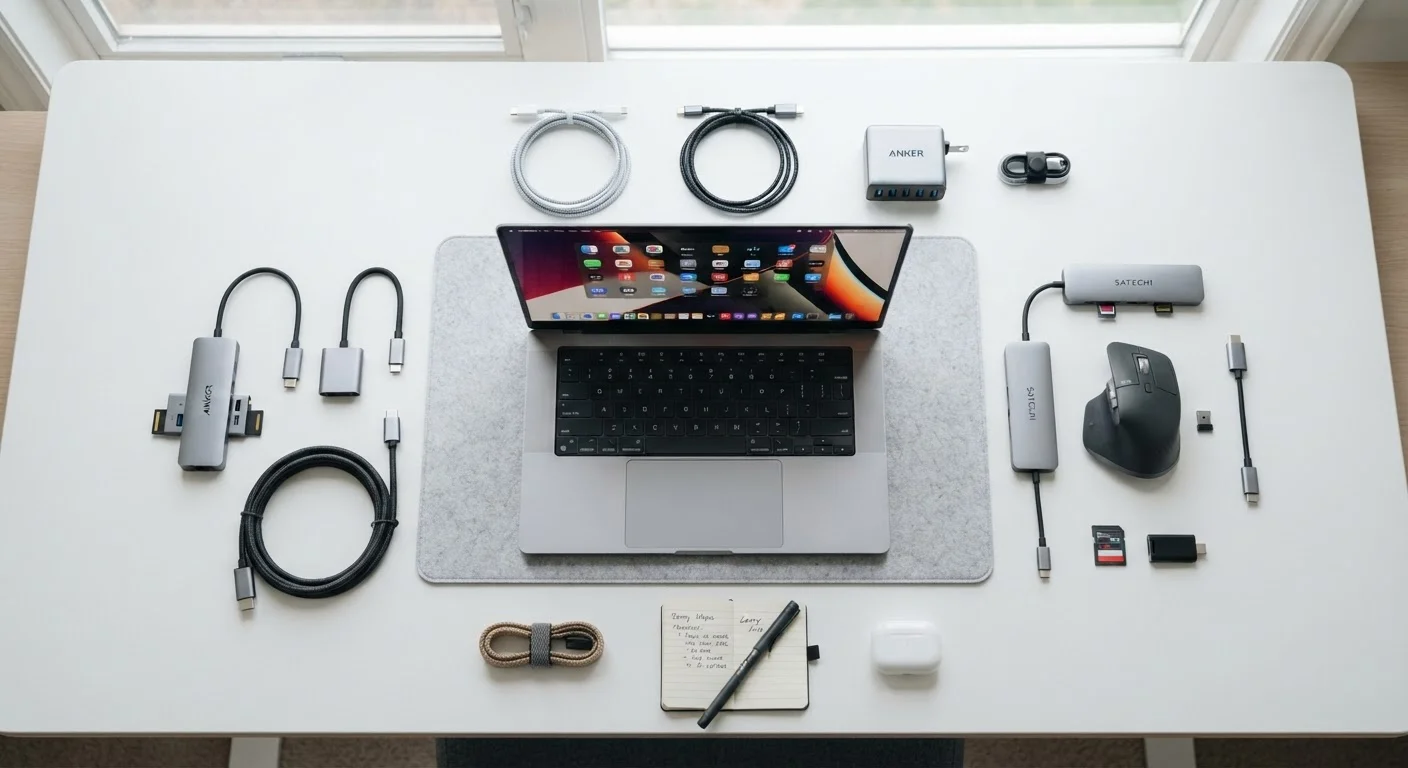
Photo credit: Infolagoon.com | Blogs To Rely On
In this article
USB-C, Thunderbolt, HDMI — modern laptops have fewer ports but more confusion. This guide explains what each connection does and when adapters are unavoidable.
Key Takeaways
- USB-C is a connector shape, not a single standard — not all USB-C ports support the same speeds or features.
- Thunderbolt ports look like USB-C but offer significantly faster data transfer and can drive high-resolution displays.
- HDMI and DisplayPort connect laptops to external monitors or TVs — your laptop may need an adapter to use them.
- Ultra-thin laptops often sacrifice port variety for slim design, making a hub or adapter essential.
- Understanding what your ports actually do helps you buy the right adapter instead of the wrong one.
Why Laptop Ports Got So Complicated
A decade ago, most laptops had a predictable set of ports: a few USB-A slots, an HDMI output, maybe an SD card reader, and a dedicated charging jack. You plugged things in without thinking twice. Then laptops started getting thinner — and those ports, which require a certain physical depth and width, simply didn't fit anymore.
The result is what many users experience today: a sleek, lightweight machine with one or two USB-C ports and not much else. If you've ever bought a new laptop and immediately needed an adapter to plug in your mouse or connect to a projector, you've felt this shift firsthand. As our article on the hidden trade-offs of ultra-thin laptops explains, slimmer designs come with real costs — and port reduction is one of the most immediately noticeable.
Understanding what each port type does — and doesn't do — turns this confusion into something manageable.
1 or 2
USB-C ports on many slim laptops
Many ultra-thin laptops ship with only one or two ports total, often exclusively USB-C, according to common product listings across major laptop categories.
40 Gbps
Maximum Thunderbolt 4 data transfer speed
Thunderbolt 4 supports up to 40 gigabits per second, compared to 5–10 Gbps for standard USB 3.2, a significant difference for large file transfers.
100W
Maximum USB-C Power Delivery charging
The USB Power Delivery standard allows USB-C ports to deliver up to 100 watts, enough to charge most laptops — though actual support depends on the specific port and charger.
The Common Port Types and What They Actually Do
USB-A: The Classic Rectangle
USB-A is the wide, flat connector most people think of when they hear "USB." It only plugs in one way (which is why you always seem to flip it twice before getting it right). It works with mice, keyboards, flash drives, and most older accessories. Despite being decades old, it's still extremely common on peripherals — just not always on newer laptops.
USB-C: The Small Oval
USB-C is reversible, smaller, and far more versatile than USB-A. Here's where things get confusing: USB-C describes the shape of the connector, not a single standard. A USB-C port might only support basic charging, or it might handle high-speed data transfer, video output, and fast charging simultaneously. The capabilities depend on which underlying protocol the manufacturer implemented — and that's rarely labeled clearly on the laptop itself.
Thunderbolt: USB-C's More Powerful Sibling
Thunderbolt ports use the USB-C connector shape but support significantly faster data transfer speeds and can drive multiple high-resolution monitors. They're also backward compatible — you can plug a regular USB-C device into a Thunderbolt port without issue. Look for a small lightning bolt symbol next to the port to identify it. Thunderbolt is especially useful for creative professionals working with large video files or external GPU setups.
HDMI and DisplayPort: Video Outputs
HDMI is the standard rectangular port used to connect laptops to TVs and monitors. DisplayPort is a similar video standard more common in desktop monitors and some laptops. Both carry high-definition video and audio in one cable. Many slim laptops have dropped these ports entirely in favor of USB-C video output, which requires an adapter.
Check the Port, Not Just the Shape
Before buying an adapter, look up your laptop's port specifications in its manual or the manufacturer's support page. Two USB-C ports on the same laptop can have different capabilities — one may support video output and fast charging while the other handles only basic data transfer. Knowing which is which saves you from buying an adapter that won't work as expected.
When Adapters Are Unavoidable — and How to Choose Wisely
Adapters aren't a sign of poor planning — they're a practical reality for most modern laptop users. The key is knowing which adapter actually matches your situation. A USB-C to HDMI adapter only works if your USB-C port supports video output (sometimes called "DisplayPort Alt Mode"). If it doesn't, the adapter won't display anything — not because the adapter is broken, but because the port isn't designed for video.
A USB-C hub is the most versatile solution for everyday users. A quality hub typically adds USB-A ports, an HDMI or DisplayPort output, an SD card reader, and sometimes a wired Ethernet jack — all through one USB-C connection. Just be aware that drawing power, running a monitor, and transferring data simultaneously through one port can occasionally affect performance, depending on the laptop.
If you're weighing whether a laptop's port situation will suit your workflow before you buy, think through how you actually use your computer day to day. Do you regularly present from a projector? Connect to a wired network? Transfer photos from a camera? These habits should drive what ports or adapters you need. Our guide on common laptop spec mistakes touches on how easy it is to overlook practical features like ports in favor of headline numbers.
Making Sense of Your Setup
Port confusion is frustrating, but it becomes manageable once you understand the logic behind it. USB-C is increasingly the universal connector — the industry is moving toward it for power, data, and video. That transition is still incomplete, which is why adapters remain necessary for most people.
If you're evaluating a laptop and connectivity matters to you, check the specifications carefully. Count not just the number of USB-C ports, but whether any are Thunderbolt-enabled, and whether any support video output and Power Delivery. Two USB-C ports that look identical on the outside can have completely different capabilities depending on how the manufacturer configured them.
For a broader look at how specs like these fit into the overall laptop decision, see our explainer on RAM, storage, and processing speed — which covers the other numbers that often trip people up. And if you're deciding whether a laptop suits you better than a tablet for your actual habits, our tablet vs. laptop guide breaks down the real-world differences.
Port Labels Aren't Always Visible
Laptop manufacturers don't always clearly label port capabilities on the device itself. A small lightning bolt icon indicates Thunderbolt support; a "D" with arrows may indicate DisplayPort output; a battery icon suggests charging capability. If you can't find markings, the laptop's official specification sheet — available on the manufacturer's support site — will list each port's supported standards. This is worth checking before purchasing accessories or adapters.
Frequently Asked Questions

Author
Tech & Gadgets Editorial Team
Tech & Gadgets Editorial Team is the collective byline for our editorial team and contributor network. Articles published under this byline or an editorial pen name are researched, written, and reviewed according to our editorial standards for clarity, consistency, and independence before publication.
View all articles →