
Personal Computers From the Ground Up: A First-Timer's Complete Orientation
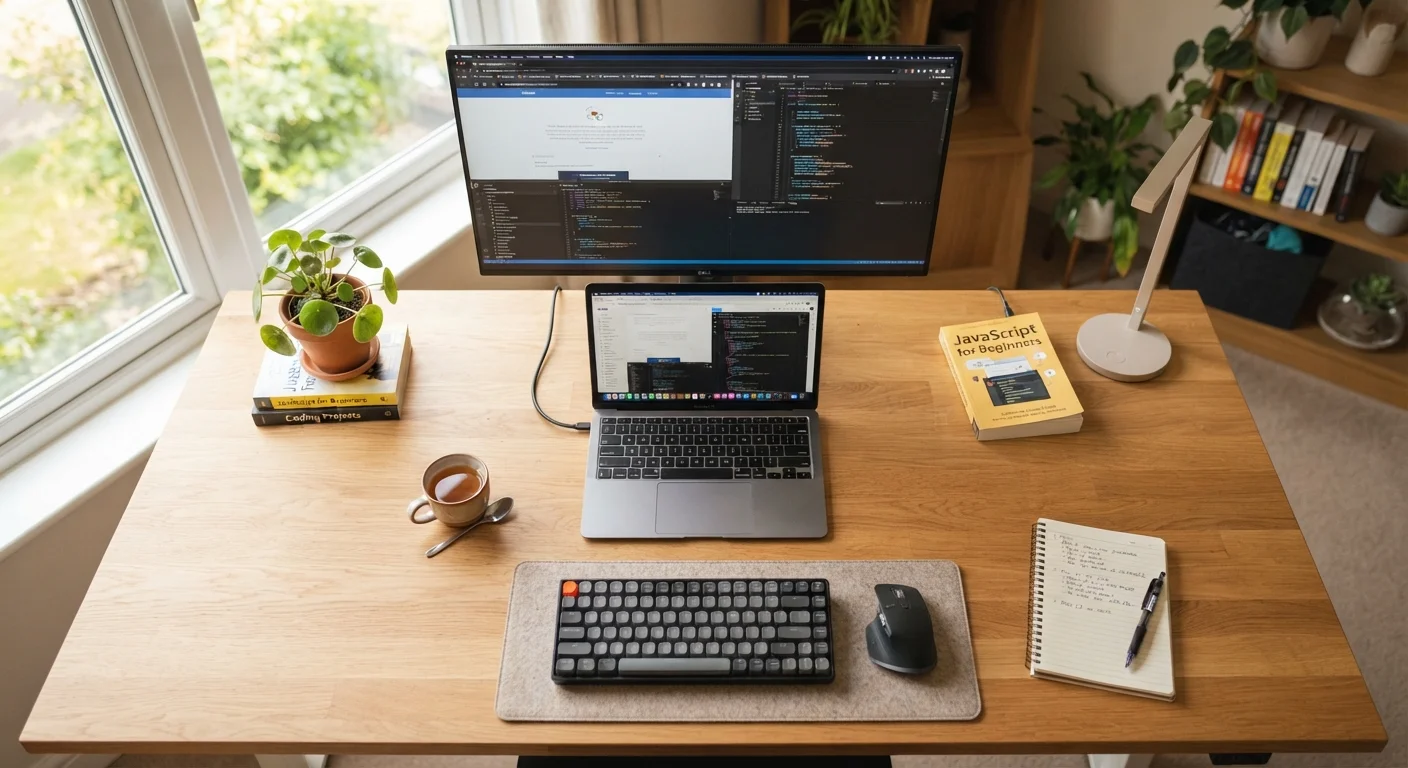
Photo credit: Infolagoon.com | Blogs To Rely On
In this article
Never owned a PC before? This guide walks through everything — hardware, software, storage, and setup — in plain, jargon-free language.
Key Takeaways
- A computer is made of two inseparable layers: physical hardware and the software that tells it what to do.
- RAM and storage are completely different things — confusing them is the most common beginner mistake.
- The operating system is the bridge between you and every app or file on your machine.
- Most everyday computing risks come from software threats, not hardware failures — staying updated is your first defense.
- You don't need to master specs to use a computer confidently — understanding core concepts is enough.
What a Computer Actually Is
A computer is a device that takes input — something you type, click, or speak — processes it using a set of instructions, and produces an output, like text appearing on screen or a file being saved. That's the whole idea, stripped of jargon.
Every computer, whether it's a sleek laptop or a tower tucked under a desk, operates on two inseparable layers: hardware (the physical components you can touch) and software (the invisible instructions those components follow). Understanding how these two layers interact is the foundation for understanding everything else.
Hardware
The physical components of a computer — the parts you can see and touch, like the screen, keyboard, and internal chips.
Software
Programs and instructions stored digitally that tell the hardware what to do. Software has no physical form — it exists as data.
Operating System (OS)
The master program that manages everything on a computer. It sits between the hardware and the applications you use daily.
RAM
Short-term working memory that holds the programs and files you're actively using. It clears completely when you turn the computer off.
Storage (SSD/HDD)
The long-term space where your files and installed programs are saved permanently, even when the computer is powered off.
Processor (CPU)
The central processing unit — the chip that carries out instructions and performs calculations. It determines how fast a computer can work.
Computers aren't magic — they're organized, layered systems. Once you understand the layers, the confusing spec sheets and marketing language start to make much more sense. Our computer spec sheet glossary is a useful companion reference once you've worked through these basics.
Hardware: The Physical Parts Explained
Hardware is everything you can physically touch on or inside a computer. Here are the components that matter most to a first-timer:
- Processor (CPU): The central processing unit is the computer's brain. It executes instructions — billions of them per second. A faster processor handles complex tasks more smoothly.
- Motherboard: The large circuit board that connects every other component. You rarely interact with it directly, but nothing works without it.
- Display: On a laptop, it's the built-in screen. On a desktop, it's a separate monitor you plug in. Resolution (measured in pixels) determines sharpness.
- Input devices: Keyboard and mouse are the standard tools for giving the computer instructions. Touchscreens and styluses are alternatives found on some models.
- Ports: The physical sockets on the exterior — USB, HDMI, headphone jack — let you connect external devices like drives, displays, and headphones.
Check Ports Before You Buy
Before committing to any computer, check what ports it includes. Some slim laptops have very few USB ports, which may mean you need adapters to connect common devices like flash drives or an HDMI monitor. Knowing what you plan to plug in ahead of time saves frustration later.
Hardware wears out over time, but most components last many years under normal home use. The component most likely to need attention first is typically the battery in a laptop.
Software: What Runs on the Hardware
Software is the set of coded instructions that tells hardware what to do. It exists in two main categories:
- Operating System (OS): This is the foundational software — Windows, macOS, and Linux are the most common. The OS manages every other program, handles file organization, and provides the desktop interface you see when you turn the computer on.
- Applications (apps): These are programs that run on top of the OS to perform specific tasks — a word processor, a web browser, a photo editor. You install apps as needed; they don't come built into the hardware.
The OS acts as a translator between you and the machine's hardware. When you click save on a document, the OS converts that action into the precise electrical signals needed to write data to your storage drive.
Keeping your operating system updated is one of the simplest and most impactful things you can do for security and stability. Updates patch vulnerabilities that attackers could otherwise exploit.
Storage, Memory, and Why They're Different
This is the concept that trips up almost every first-time computer user, and understandably so — both are measured in gigabytes (GB), which makes them look interchangeable. They are not.
- Storage (Hard Drive or SSD)
- This is where your files live permanently — photos, documents, downloaded apps, videos. When you turn the computer off, everything in storage stays put. Modern computers use solid-state drives (SSDs), which are faster and more durable than older spinning hard drives.
- RAM (Random Access Memory)
- This is your computer's short-term working space. When you open a program, it loads from storage into RAM so the processor can access it quickly. RAM is temporary — when you shut down, it clears completely. More RAM means more programs can run smoothly at the same time.
Storage vs. RAM: A Quick Clarification
When a computer listing says '256GB SSD, 8GB RAM,' those are two completely separate specifications. The 256GB refers to how much you can store permanently; the 8GB refers to how much the computer can actively work with at once. A large storage drive does not compensate for low RAM, and vice versa.
A simple analogy: storage is your filing cabinet, and RAM is your desk. You pull files from the cabinet (storage) onto your desk (RAM) to work on them. A bigger desk means more files open at once without things getting cluttered.
Getting Connected and Staying Safe
Most computers connect to the internet via Wi-Fi (wireless) or an Ethernet cable (wired, faster and more stable). Your home router is the device that bridges your computer to your internet service provider's network.
Once connected, a few basic habits will keep your experience safer:
- Install OS and app updates promptly — they frequently include security fixes.
- Use strong, unique passwords for each account. A password manager app can generate and store these for you.
- Be cautious about email attachments or links from unfamiliar senders — these are a common delivery method for malicious software.
- Back up important files. An external drive or a cloud storage service keeps a copy of your data separate from your main machine.
If you're also setting up smart home devices alongside your computer, the smart home setup guide covers how to think about your home network when adding multiple connected devices.
Where to Go From Here
You now have a working mental model of how a personal computer functions — hardware executes instructions, software provides those instructions, RAM handles active work, and storage keeps files long-term. That framework applies whether you're using a budget laptop or a high-end desktop.
From here, the most productive next step is simply using the machine. Real familiarity comes from hands-on practice, not more reading. Try organizing files into folders, experimenting with a new application, or exploring your OS settings.
For readers who want to go deeper into technical terminology, the computer spec sheet glossary translates every term you'll encounter on product listings into plain English. And if you're interested in expanding your home tech ecosystem beyond a single computer, explore the Home Tech hub for approachable guides on connected devices.
Learning to use a computer confidently is similar to learning any new skill — it's incremental, and the early confusion fades quickly with practice. Just like first-time vehicle ownership, the key is building a solid foundation of core concepts before getting lost in the details.
Computer Spec Sheet Glossary
A plain-English breakdown of every technical term you'll encounter on a computer listing — from GHz to NVMe — so spec sheets stop feeling like a foreign language.
Home Tech Hub
Approachable guides covering smart home devices and everyday household technology, useful once you're ready to connect more devices to your home network.
Password Manager
A password manager app generates and securely stores strong, unique passwords for every account, removing the need to remember or reuse them.
Cloud Storage Service
Cloud storage automatically backs up your files to remote servers, protecting your data if your computer is lost, stolen, or damaged.
Frequently Asked Questions

Author
Tech & Gadgets Editorial Team
Tech & Gadgets Editorial Team is the collective byline for our editorial team and contributor network. Articles published under this byline or an editorial pen name are researched, written, and reviewed according to our editorial standards for clarity, consistency, and independence before publication.
View all articles →