
Moving Your Life from One Phone to Another Without Losing Anything
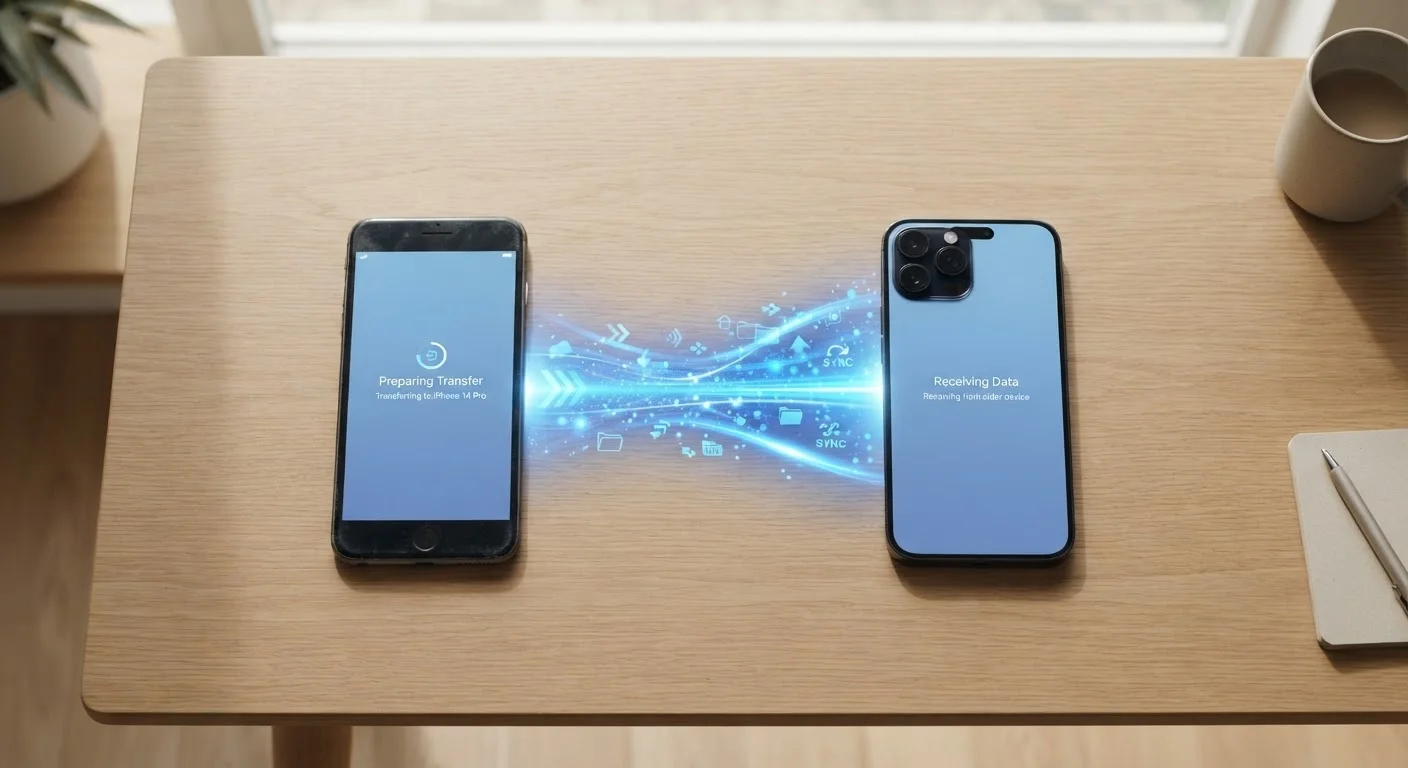
Photo credit: Infolagoon.com | Blogs To Rely On
In this article
Switching phones is easier than it used to be, but things still fall through the cracks. Follow these steps to transfer your data safely and completely.
Key Takeaways
- Back up your old phone before doing anything else — it's your safety net if something goes wrong.
- Both Android and iPhone have built-in transfer tools that handle most data automatically.
- Some things — like authenticator app codes and certain bank apps — require manual steps.
- Confirm your data arrived safely on the new phone before wiping the old one.
- After the transfer, update your privacy settings on the new device from scratch.
Why Phone Transfers Still Go Wrong
Modern phones make switching feel simple — and for the most part, it is. But the process has enough moving parts that small things get missed. Photos stored only on your device (not synced to the cloud), app settings that don't travel with the app, and two-factor authentication codes all require deliberate handling. The good news is that following a clear sequence eliminates almost all of these pitfalls.
Whether you're moving from Android to iPhone, iPhone to Android, or staying within the same ecosystem, the same core principles apply: back up first, use the right tool for your platform, verify everything before erasing, and handle the handful of things that require a manual step.
What you will need
What You'll Need
The tools required are minimal, but having them ready before you start prevents interruptions mid-transfer. A reliable Wi-Fi connection matters more than most people expect — transfers over mobile data are slower and can stall on large photo libraries.
Phone manufacturer's transfer app (e.g., Move to iOS, Google's Switch to Android)
Automates the migration of contacts, photos, messages, and app data between phones.
Cloud storage account (iCloud or Google Photos)
Backs up photos and videos so they're accessible from any device after the transfer.
USB data cable
Enables a direct wired connection for faster, more reliable data transfer between phones.
Password manager app
Stores and syncs all your saved passwords to the new device without manual re-entry.
Step-by-Step: Moving Your Data
Back up your old phone completely
Before touching anything else, create a full backup of your current phone. On an iPhone, go to Settings → [your name] → iCloud → iCloud Backup and tap Back Up Now. On Android, go to Settings → System → Backup and confirm backup to your Google account. This backup is your insurance — if the transfer stalls or something goes missing, you can restore from it.
Note apps and accounts that need manual attention
Automated tools are good, but they don't catch everything. Before you start the transfer, write down any apps that use two-factor authentication codes (like Google Authenticator or Authy), banking or financial apps, and any subscriptions tied to a specific device. These often require you to log in fresh or manually migrate codes. Spending five minutes on this list now prevents a frustrating scramble later.
Use the built-in transfer tool for your platform
Both major platforms offer guided transfer tools designed for non-technical users. Switching to iPhone: Download the Move to iOS app on your Android device and follow the on-screen prompts during your new iPhone's setup. Staying on Android or switching between Android phones: During new phone setup, choose Copy apps and data and follow the cable or wireless transfer steps. Staying on iPhone: Restore from your iCloud backup during setup, or use the Quick Start feature by holding both phones near each other. These tools transfer contacts, photos, messages, and most app data.
Verify your data arrived safely
Once the transfer finishes, spend time checking your new phone methodically. Open your contacts and scroll through several entries. Check your photo library for recent photos. Open a few key apps and confirm they're logged in and functional. Send a test text message. Check your email. Don't rush this step — the goal is to catch anything missing while your old phone is still intact and accessible.
Re-secure your accounts and update privacy settings
Log back into any apps that require fresh authentication — especially banking, health, and financial apps. Re-enroll in biometrics (fingerprint or Face ID) on the new device. Then take a few minutes to review your privacy settings from scratch, since defaults on a new phone may differ from what you had configured. For a thorough walkthrough, see our guide to smartphone privacy settings.
Wipe your old phone only after you're satisfied
Once you've confirmed everything transferred and your new phone is working properly, perform a factory reset on the old device before selling, trading, or recycling it. On iPhone: Settings → General → Transfer or Reset iPhone → Erase All Content and Settings. On Android: Settings → System → Reset → Factory Data Reset. This removes your personal data so it can't be recovered by someone else.
Don't Wipe Before You Verify
The most common mistake people make is factory-resetting their old phone the moment the transfer bar hits 100%. Transfer tools can silently skip certain file types or app data. Spend at least 15 minutes actively checking your new phone's contents before erasing the old one. Once it's wiped, locally stored data that wasn't captured in a backup cannot be recovered.
What Transfers Automatically — and What Doesn't
Most people are pleasantly surprised by how much moves on its own. Contacts, text message history, photos and videos, calendar events, and the majority of apps all transfer cleanly using the built-in tools. Your Wi-Fi passwords also transfer when staying within the same ecosystem.
What typically requires manual action: authenticator app codes, some banking apps that tie sessions to a specific device, locally downloaded music or podcasts, and app-specific data for games that don't use cloud saves. Understanding how your phone handles different types of connections can also help you troubleshoot if a wireless transfer stalls unexpectedly.
A Great Time to Declutter
A phone transfer is a natural opportunity to be intentional about what you carry forward. As you reinstall apps on the new device, only download the ones you actually use. Skipping the clutter from the start keeps your new phone running smoothly longer — a habit covered in more depth in our guide to keeping your smartphone running well.

Author
Tech & Gadgets Editorial Team
Tech & Gadgets Editorial Team is the collective byline for our editorial team and contributor network. Articles published under this byline or an editorial pen name are researched, written, and reviewed according to our editorial standards for clarity, consistency, and independence before publication.
View all articles →