
Keeping Your Computer Running Well: Maintenance Habits Worth Building
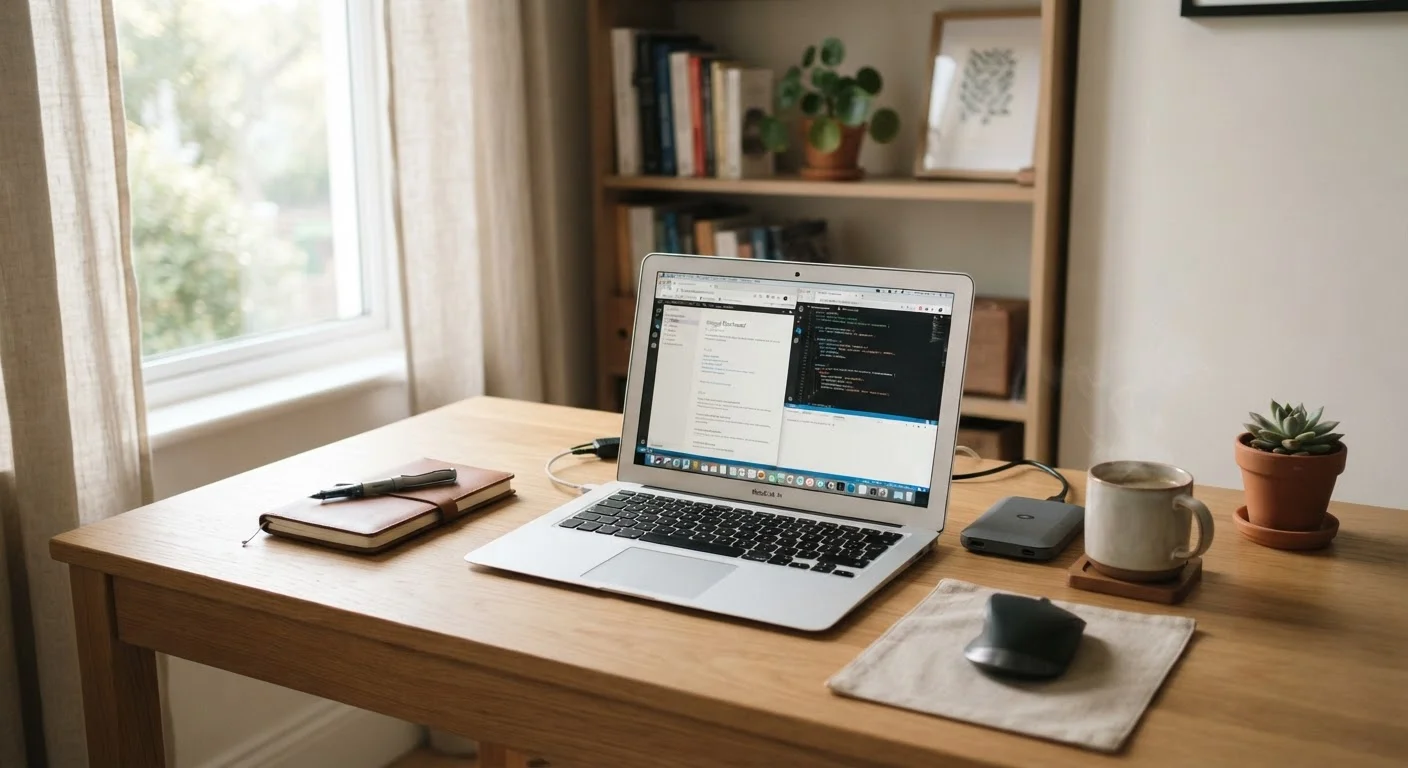
Photo credit: Infolagoon.com | Blogs To Rely On
In this article
Regular upkeep can extend a computer's useful life considerably. These practical habits help prevent slowdowns, data loss, and security gaps.
Key Takeaways
- Regular software updates close security gaps that attackers actively exploit.
- Routine backups are the only reliable protection against sudden data loss.
- Managing startup programs and storage frees up speed without buying new hardware.
- Physically cleaning your computer prevents heat buildup that shortens its lifespan.
- Security hygiene — strong passwords and awareness of phishing — matters as much as technical upkeep.
Why Maintenance Matters More Than Specs
When a computer starts feeling sluggish, the instinct is often to blame age or assume it needs replacing. In many cases, the real cause is deferred maintenance — skipped updates, a cluttered hard drive, or software running unchecked in the background. Just as neglecting home upkeep compounds into expensive repairs, small oversights with a computer tend to stack up quietly until something breaks or slows to a crawl.
The good news: most of the habits that keep a computer healthy take only minutes and cost nothing. They don't require technical expertise — just consistency.
30%
Of hard drives fail within 3 years
Industry reliability studies consistently show a meaningful percentage of drives fail within the first few years of use, underscoring why backups are non-negotiable.
60%+
Of breaches exploit unpatched vulnerabilities
Security researchers have repeatedly found that a majority of successful attacks target known flaws for which patches were already available but not yet applied.
Core Maintenance Practices to Build
The following practices address the most common causes of slowdowns, data loss, and security vulnerabilities. Think of them as a short checklist you return to regularly rather than a one-time fix.
Install operating system and software updates promptly.
Updates frequently include patches for security vulnerabilities that attackers are actively exploiting. Delaying them leaves a known door open. They also fix bugs that can cause crashes or slow performance.
Back up your data regularly to at least one location you control.
Hard drives fail without warning, ransomware can lock you out of your own files, and accidental deletion happens to everyone. A backup is the only reliable recovery option when any of these occur.
Audit and reduce programs that launch automatically at startup.
Many applications add themselves to your startup list during installation. Over time, this slows boot time and keeps memory occupied by programs you may rarely use.
Keep storage from filling to capacity.
Operating systems use free disk space as working memory for temporary files. When a drive gets close to full — typically above 85–90% capacity — performance degrades and some operations fail entirely.
Clean dust from vents and fans periodically.
Dust buildup restricts airflow, causing the processor to run hotter. Sustained heat shortens the lifespan of internal components and can cause the system to slow itself down intentionally to prevent damage.
Use strong, unique passwords and enable two-factor authentication.
Reusing passwords across accounts means a breach on one site can expose all of them. Two-factor authentication (a second verification step, like a code sent to your phone) adds a meaningful barrier even if a password is compromised.
Quick Actions You Can Take Today
If you're looking for a starting point, these actions take under 15 minutes and address the highest-impact areas immediately. Much like building budget habits that stick, the key is making these small steps part of a regular routine rather than an occasional scramble.
For a deeper look at security-specific settings — especially before storing sensitive personal data — see what to check before trusting a computer with your personal data. Similar habits apply to mobile devices too; the same principles covered here are explored for phones in keeping a smartphone running well for longer.
Keeping the Habit Going
Maintenance works best when it's scheduled, not reactive. Consider setting a recurring reminder — once a month is enough for most tasks — so updates, backups, and a quick system check become automatic rather than something you remember only when something goes wrong.
Schedule It Like Any Other Appointment
Pick a specific day each month — the first Sunday, for example — and use it as your maintenance window. Run updates, check your backup, clear out downloads, and wipe the vents if needed. Treating it as a fixed routine rather than an ad hoc task means it actually happens. Even 20 minutes a month is enough to stay ahead of most common problems.
Over time, these habits don't just prevent problems — they help you understand your computer well enough to notice when something genuinely unusual is happening, making it easier to ask for help or decide when professional service is actually warranted.

Author
Tech & Gadgets Editorial Team
Tech & Gadgets Editorial Team is the collective byline for our editorial team and contributor network. Articles published under this byline or an editorial pen name are researched, written, and reviewed according to our editorial standards for clarity, consistency, and independence before publication.
View all articles →