
How Computer Memory Actually Works — Without the Engineering Degree
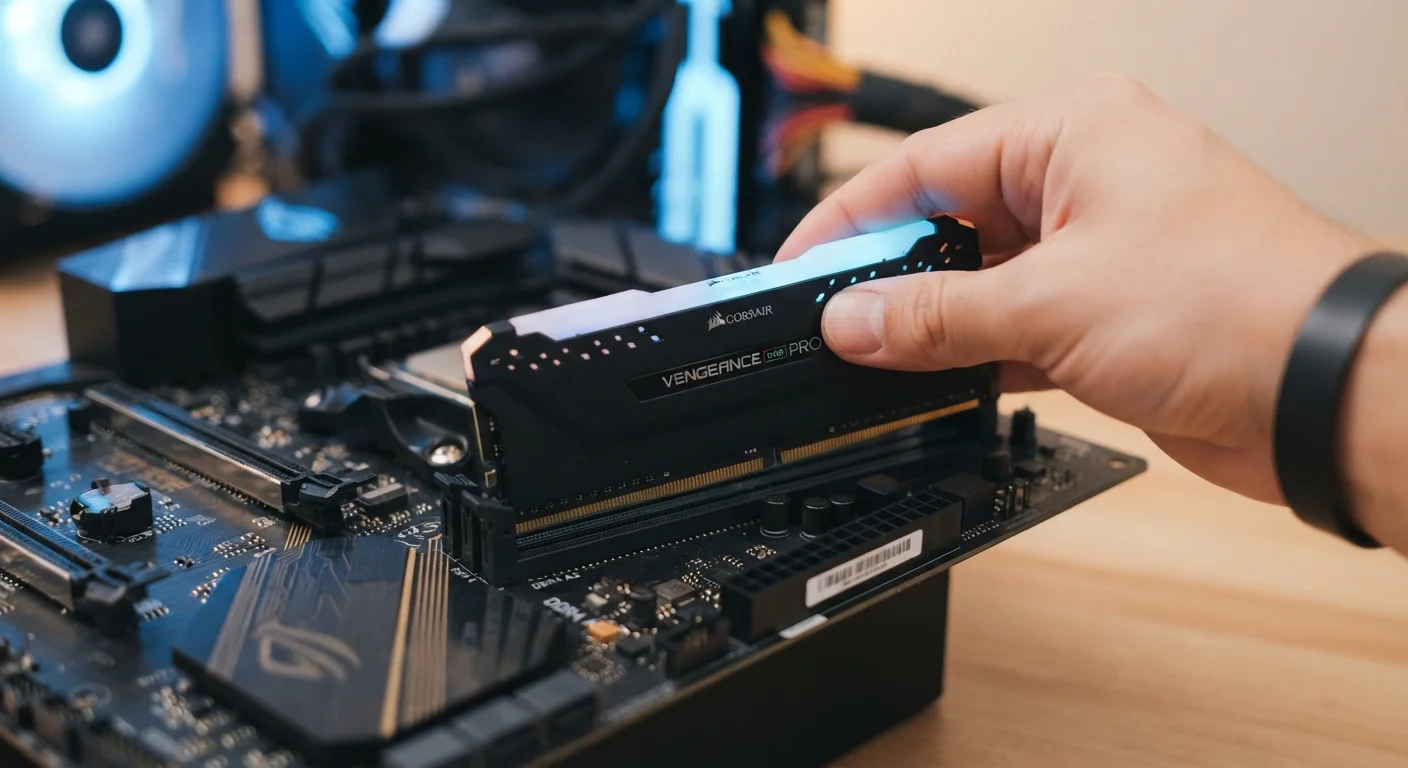
Photo credit: Infolagoon.com | Blogs To Rely On
In this article
RAM gets mentioned constantly but rarely explained. This plain-language breakdown covers what memory does, why it runs out, and when it matters.
Key Takeaways
- RAM is temporary workspace, not permanent storage — it holds active data, not saved files.
- Running out of RAM slows your computer because it must borrow slower storage space instead.
- More RAM helps most when multitasking or running demanding applications like video editing.
- RAM and storage are different things; having lots of one doesn't compensate for having little of the other.
- For most everyday users, 8–16 GB of RAM covers typical computing needs.
The Desk Analogy That Actually Makes Sense
Think of your computer as a worker at a desk. The desk surface is RAM — it's where active work happens. The filing cabinet across the room is your storage drive — it holds everything long-term but takes a moment to retrieve.
When you open an app, your computer pulls the relevant files from the filing cabinet and spreads them on the desk. The bigger the desk, the more projects you can have open simultaneously without constantly running back to the cabinet. A small desk doesn't mean you lose your work — it just means constant shuffling, which takes time.
This is why RAM doesn't store your photos or documents. When you save a file, it moves to the filing cabinet. When you shut down, the desk gets cleared completely.
RAM Clears on Every Shutdown
Because RAM only holds temporary data, powering off your computer doesn't erase your saved files — it just clears the active workspace. Your documents, photos, and installed apps all live on your storage drive and remain intact across restarts. This is also why restarting a slow computer often helps: it wipes the temporary workspace and lets programs start fresh.
Why Running Out of RAM Feels So Bad
When your RAM fills up, your operating system doesn't crash immediately — it improvises. It carves out a section of your storage drive to act as overflow RAM, called virtual memory (sometimes called a swap file or paging file).
The problem: even a fast SSD is dramatically slower than actual RAM. Tasks that normally happen in milliseconds can suddenly take seconds. You'll notice tabs reloading when you switch back to them, apps pausing before responding, and a general feeling that the computer is "thinking" too long.
~10x
Speed gap between RAM and SSD storage
Even modern NVMe SSDs operate at speeds roughly an order of magnitude slower than RAM, explaining why virtual memory use causes noticeable lag.
8–15 GB
RAM consumed by a typical browser session
Web browsers with multiple tabs, extensions, and media playback are among the most memory-intensive everyday applications on modern computers.
Heavy RAM usage isn't always obvious. A browser with 15 open tabs, a streaming video, a cloud sync app running in the background, and a document editor open simultaneously can collectively consume 8 GB or more — even if each individual app seems lightweight.
RAM vs. Storage: The Confusion Worth Clearing Up
Marketing language blurs these two constantly. A phone advertised as having "128 GB" is describing storage — the filing cabinet. The "6 GB RAM" listed separately is the desk. They measure different things and can't substitute for each other.
For a deeper breakdown of how storage numbers work on mobile devices, see what phone storage specs actually mean. For a broader look at how RAM, storage, and processor speed interact on laptops, RAM, storage, and processing speed explained together is worth reading alongside this.
Check What's Using Your RAM Right Now
On Windows, open Task Manager (Ctrl + Shift + Esc) and click the Performance tab to see real-time RAM usage. On a Mac, open Activity Monitor from the Applications > Utilities folder and check the Memory tab. If your RAM is consistently near capacity during normal use, that's a meaningful signal — not just a spec-sheet concern.
When RAM Specs Actually Matter to You
RAM matters most in three real-world situations:
- Heavy multitasking: Running many apps or browser tabs simultaneously demands more RAM to avoid slowdowns.
- Creative work: Video editing, photo editing, and music production load large files into memory and hold them there throughout a project.
- Future-proofing: Software tends to grow more memory-hungry over time. A machine that feels fine today with 8 GB may feel sluggish in a few years as apps update.
For writing emails, streaming video, and light document editing, RAM becomes a non-issue once you have enough — typically 8 GB minimum, with 16 GB giving comfortable room to grow.
If you want a full reference for decoding every number on a spec sheet, the computer spec sheet glossary covers every term you're likely to encounter.
“Memory is the invisible bottleneck most people never think about until it's already throttling their machine. By the time they notice the slowdown, the RAM has been maxed out for months.”
— A hardware performance researcher, Computer architecture and systems performance specialist
Frequently Asked Questions

Author
Tech & Gadgets Editorial Team
Tech & Gadgets Editorial Team is the collective byline for our editorial team and contributor network. Articles published under this byline or an editorial pen name are researched, written, and reviewed according to our editorial standards for clarity, consistency, and independence before publication.
View all articles →